Before and After Pro Slider
Bogdan Dobrea Foto e Vídeo 4+ 0,99 €
4.00 · 2 avaliações
Melhor posição agora
#49
em 3 lojas
Pico
#24Dias rastreados
9Avaliações
2 Histórico de gráficos
9 dias registrados por nós
Lojas
gráficos em 3 hoje
Avaliações
2 na App Store
Preço
mudou 3 vez(es) em nossa janela
Instalações e receita
A Apple não publica nenhum — não fazemos suposições
Atualmente em gráfico
Histórico
Construído a partir das próprias capturas diárias da Astrina — um ponto por dia.
Posição no gráfico — 🇫🇷 Top Pago
10.09 11.09 24.09
Mostrar os números
| Dia | Posição |
|---|---|
| 10.09 | #24 |
| 11.09 | #51 |
| 23.09 | #28 |
| 24.09 | #49 |
Número de avaliações
10.09 11.09 24.09
Mostrar os números
| Dia | Avaliações |
|---|---|
| 10.09 | 2 |
| 11.09 | 2 |
| 23.09 | 2 |
| 24.09 | 2 |
Capturas de tela

Sobre este app
Important: please read the app's description before acquiring the app.
The manual sliding functionality is only available inside the app (you will not be able to drag the slider after sharing the slideshow video on a social platform).
The app is compatible with iPhone 5s, iPad 5th gen, iPad Mini 2nd gen or newer devices.
Try before you buy: look for Before and After Photo Compare
Main features of Before and After Pro Slider:
- no ads
- easy to use with detailed How To Use screen
- English and Russian language support
- the settings and slides are automatically saved and will be used when you start the app again
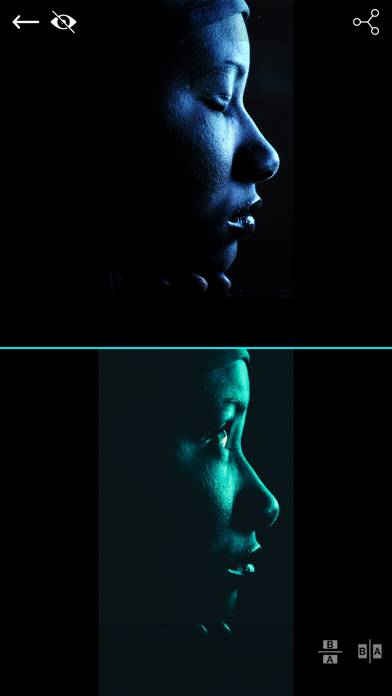
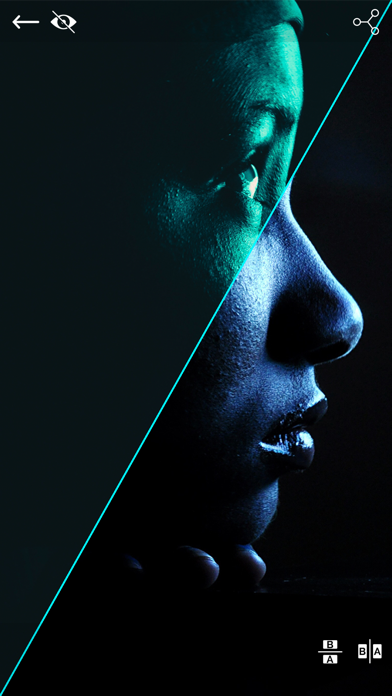
- 2 Image Compare mode where you can manually drag the slider (vertically, horizontally, oblique or reverted oblique). In this screen you can access the Side by Side mode by pressing the button in the bottom right corner
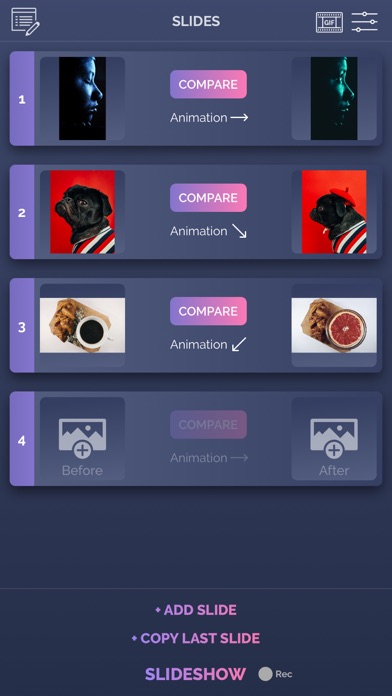
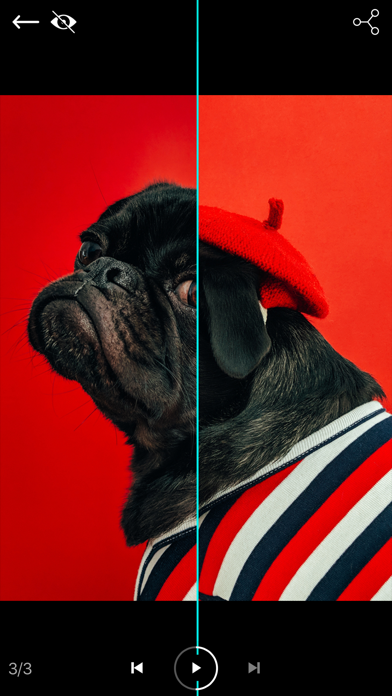
- Slideshow mode where you can present your before/after slides (30 max) in an animated way. The reveal animation will run by itself for each slide.
- you can preview the existing before/after image when taking a new picture
- you can control the direction of each slide in the slideshow and also you can duplicate the last slide
- you can record the slideshow and then trim it before saving or sharing it.
- you can convert your recorded slideshow (or any other video) to an animated GIF
- ability to save/share a snapshot of the current slide. Only a screenshot will be saved/shared, so you won't have the slider functionality when you perform this operation.The recording feature is built into iOS and it can behave strangely sometimes, so please be aware of this. If you experience issues, a device restart is required.
How to use:
- tap on the before/after image slots to load the images from the Library (or take a new one with the camera). You can load both before/after images at the same time (if both slots are open). Optionally, you can load a logo (for best results, use a png image with transparency) that will be shown in one of the corners when you are in Slideshow mode
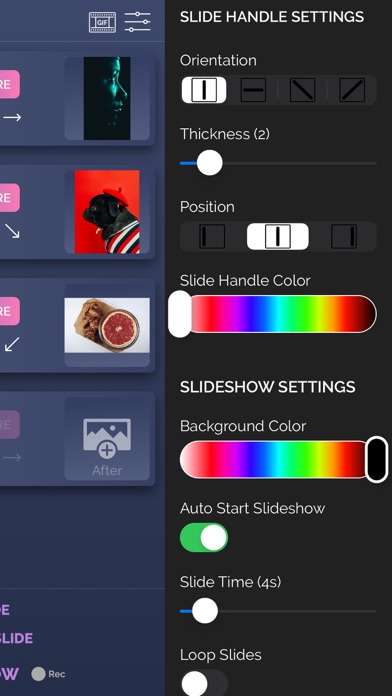
- modify the slide handle/slideshow settings to match your needs
- once both images are loaded, tap on the Compare button and drag the slider with your finger
- to create Slideshow, the before and after images for the current slide must be present (valid only for the first slide). Once the images are loaded and you altered to settings to match your preferenes, tap on the Slideshow button and watch it run automatically. To add a new slide, tap on the Add Slide button at the bottom of the screen and then add images to it. You can edit the slides order by going into the Edit mode (top left button)
- to add background music to the Slideshow, from the side menu, tap the Pick Song button and load a song from your device's library. Next time you press the Slideshow button, the song will play.
- to hide the top and bottom control bars in 2 Image Compare/Slideshow mode, tap on the eye icon in the top right corner. To show them again, double tap or long press on the device's screen
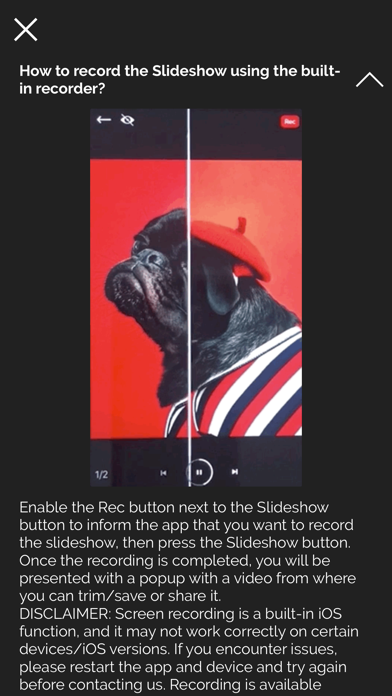
- To record, activate the Rec button and then press the Slideshow button. The recording will stop once the slideshow is finished, and you will be presented with the resulting video. From there you will be able to trim it before saving/sharing it.
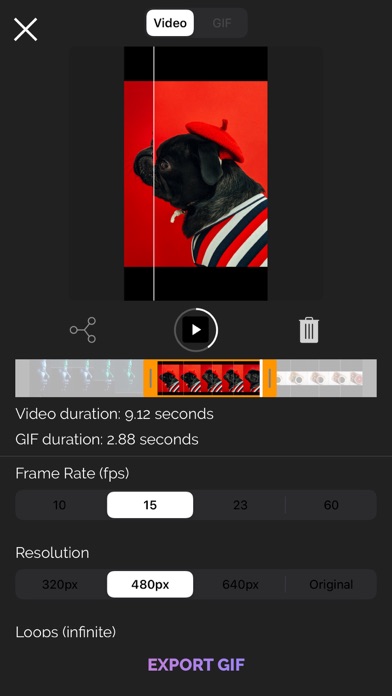
- To export a slideshow recording to GIF, then press the GIF button in the top right corner, load the slideshow video, trim it (20 seconds maximum), then press EXPORT GIF button and then save/share it.
The app is suitable for those who want to compare the before and after images (to see weight loss or diet/fitness program results, makeup or aesthetic transformation etc) or to impress their friends/bosses/clients with the work they've done, by presenting them the stages of their work in a cool way.
If you're having trouble loading images, try turning on the User Regular Image Picker switch in the side menu settings.
Enjoy this app and don't forget to contact us through the app's contact form if you have something to say!
The manual sliding functionality is only available inside the app (you will not be able to drag the slider after sharing the slideshow video on a social platform).
The app is compatible with iPhone 5s, iPad 5th gen, iPad Mini 2nd gen or newer devices.
Try before you buy: look for Before and After Photo Compare
Main features of Before and After Pro Slider:
- no ads
- easy to use with detailed How To Use screen
- English and Russian language support
- the settings and slides are automatically saved and will be used when you start the app again
- 2 Image Compare mode where you can manually drag the slider (vertically, horizontally, oblique or reverted oblique). In this screen you can access the Side by Side mode by pressing the button in the bottom right corner
- Slideshow mode where you can present your before/after slides (30 max) in an animated way. The reveal animation will run by itself for each slide.
- you can preview the existing before/after image when taking a new picture
- you can control the direction of each slide in the slideshow and also you can duplicate the last slide
- you can record the slideshow and then trim it before saving or sharing it.
- you can convert your recorded slideshow (or any other video) to an animated GIF
- ability to save/share a snapshot of the current slide. Only a screenshot will be saved/shared, so you won't have the slider functionality when you perform this operation.The recording feature is built into iOS and it can behave strangely sometimes, so please be aware of this. If you experience issues, a device restart is required.
How to use:
- tap on the before/after image slots to load the images from the Library (or take a new one with the camera). You can load both before/after images at the same time (if both slots are open). Optionally, you can load a logo (for best results, use a png image with transparency) that will be shown in one of the corners when you are in Slideshow mode
- modify the slide handle/slideshow settings to match your needs
- once both images are loaded, tap on the Compare button and drag the slider with your finger
- to create Slideshow, the before and after images for the current slide must be present (valid only for the first slide). Once the images are loaded and you altered to settings to match your preferenes, tap on the Slideshow button and watch it run automatically. To add a new slide, tap on the Add Slide button at the bottom of the screen and then add images to it. You can edit the slides order by going into the Edit mode (top left button)
- to add background music to the Slideshow, from the side menu, tap the Pick Song button and load a song from your device's library. Next time you press the Slideshow button, the song will play.
- to hide the top and bottom control bars in 2 Image Compare/Slideshow mode, tap on the eye icon in the top right corner. To show them again, double tap or long press on the device's screen
- To record, activate the Rec button and then press the Slideshow button. The recording will stop once the slideshow is finished, and you will be presented with the resulting video. From there you will be able to trim it before saving/sharing it.
- To export a slideshow recording to GIF, then press the GIF button in the top right corner, load the slideshow video, trim it (20 seconds maximum), then press EXPORT GIF button and then save/share it.
The app is suitable for those who want to compare the before and after images (to see weight loss or diet/fitness program results, makeup or aesthetic transformation etc) or to impress their friends/bosses/clients with the work they've done, by presenting them the stages of their work in a cool way.
If you're having trouble loading images, try turning on the User Regular Image Picker switch in the side menu settings.
Enjoy this app and don't forget to contact us through the app's contact form if you have something to say!
Detalhes
| Desenvolvedor | Bogdan Dobrea |
|---|---|
| Categoria | Foto e Vídeo |
| Preço | 0,99 € |
| Classificação etária | 4+ |
| Versão | 3.2.4 |
| Tamanho | 76.3 MB |
| iOS mínimo | 12.2 |
| ID do pacote | com.arjunaweb.beforeAfterProSlideriPhone |
| Lançado | 2013-08-07 |
| Última atualização | 2023-06-19 |
| Idiomas | 2 idiomas |
O que esta página responde
- Before and After Pro Slider avaliações de aplicativos
- Before and After Pro Slider avaliação de aplicativo
- Before and After Pro Slider download
- Before and After Pro Slider classificação na loja de aplicativos
- avaliações de Before and After Pro Slider
- avaliações e classificações de Before and After Pro Slider
- é Before and After Pro Slider legítimo
- é Before and After Pro Slider uma fraude
- avaliações de usuários reais de Before and After Pro Slider
- classificação de Before and After Pro Slider
- reclamações de Before and After Pro Slider
- o que as pessoas dizem sobre Before and After Pro Slider
- avaliações de Before and After Pro Slider aplicativo
- prós e contras de Before and After Pro Slider
- experiência de Before and After Pro Slider
- devo confiar em Before and After Pro Slider
- feedback de Before and After Pro Slider
- avaliação de Before and After Pro Slider 2026
- verificação de Before and After Pro Slider
- verificação de segurança de Before and After Pro Slider
